Employee Import History
Employee Import History
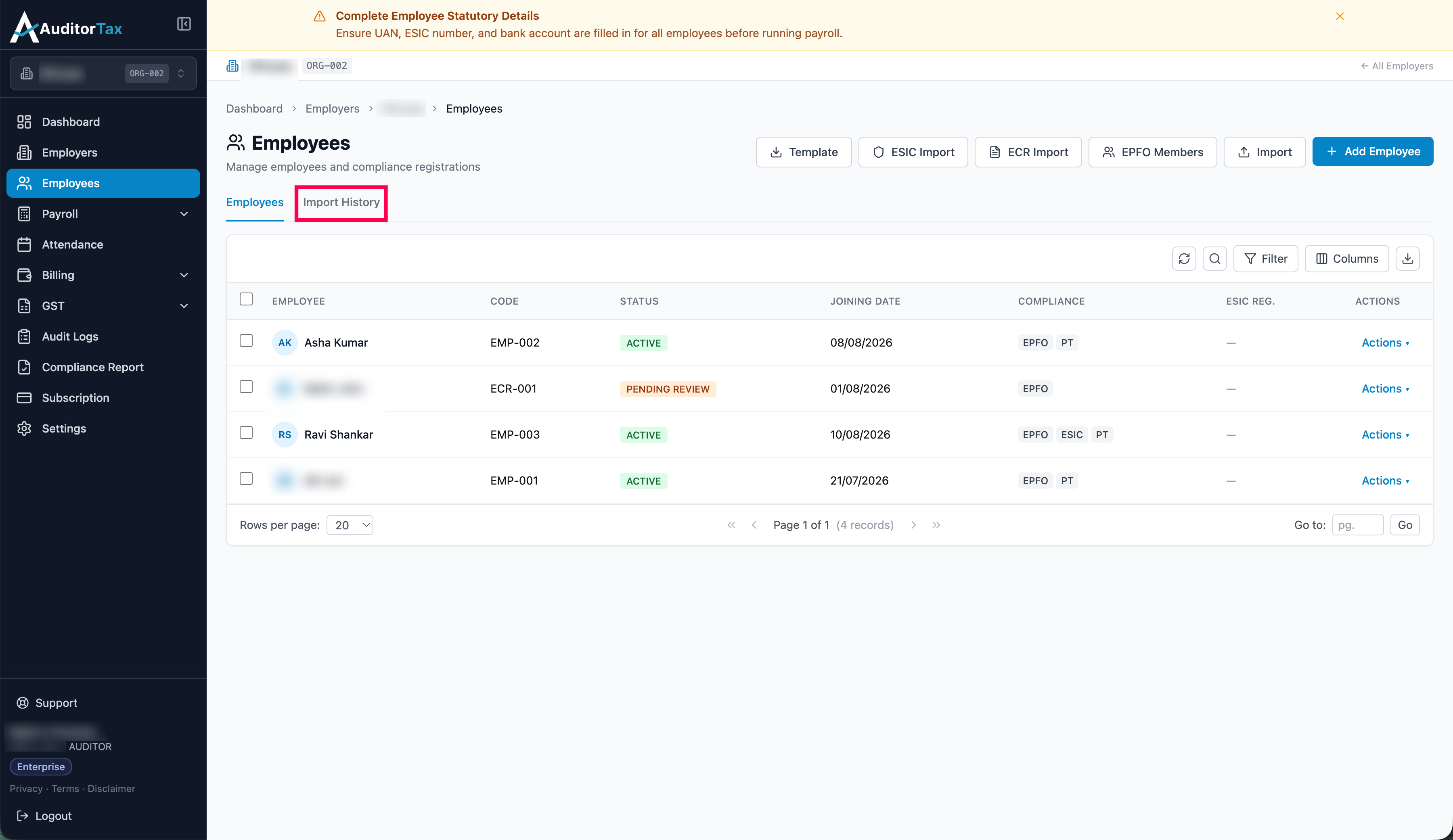
Section titled “Employee Import History”1. Click “Import History” above the employee table
Section titled “1. Click “Import History” above the employee table”This switches the same page from the Employees list to a log of past bulk imports, next to the “Employees” tab. Each row shows the import Type, File Name, how many employees were Imported, how many Errors and rows Pending Review, and the Date.
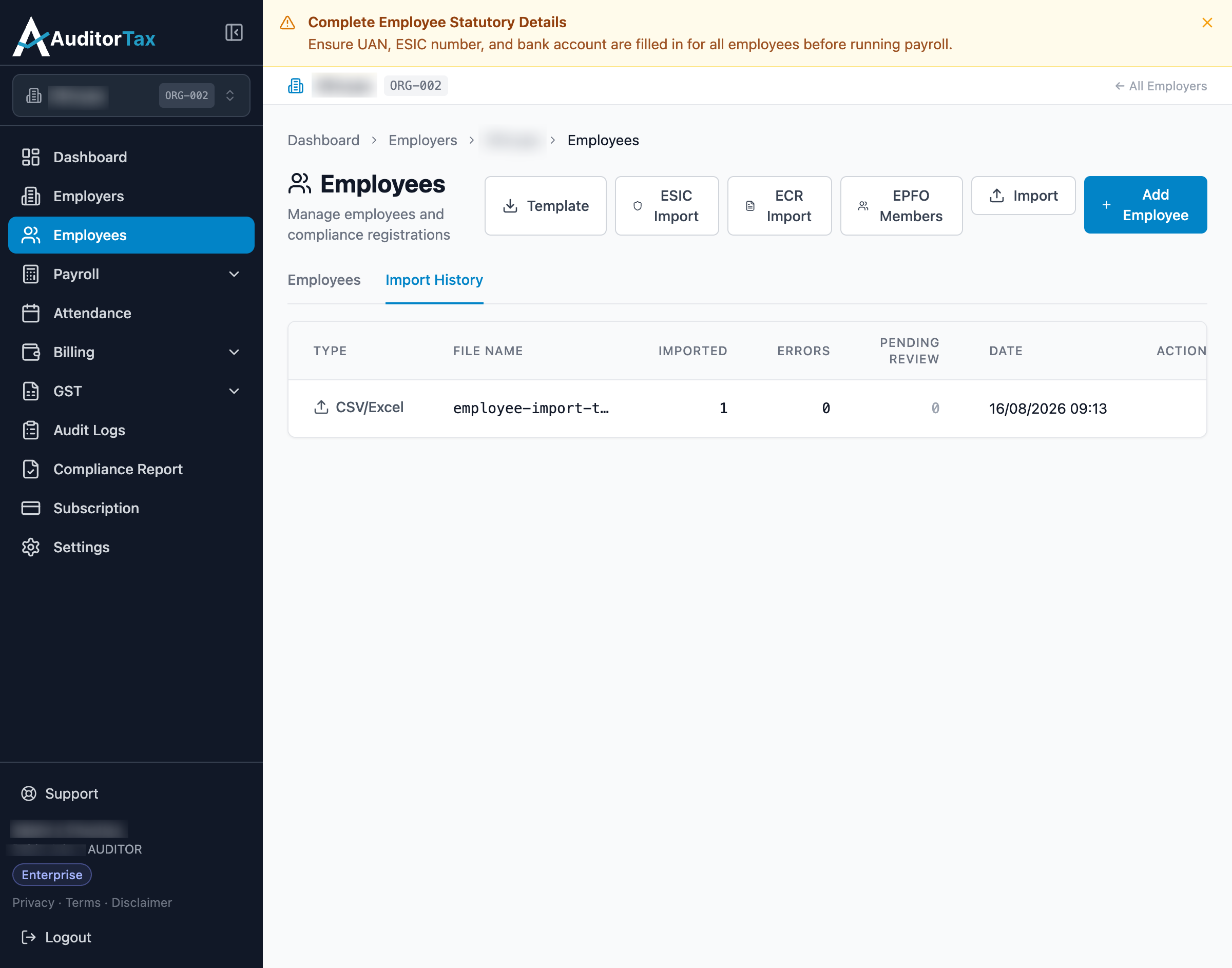
Outcome: both successful imports from this walkthrough appear as their own row — one Type “CSV/Excel”, one Type “ECR” — each showing Imported: 1, Errors: 0.
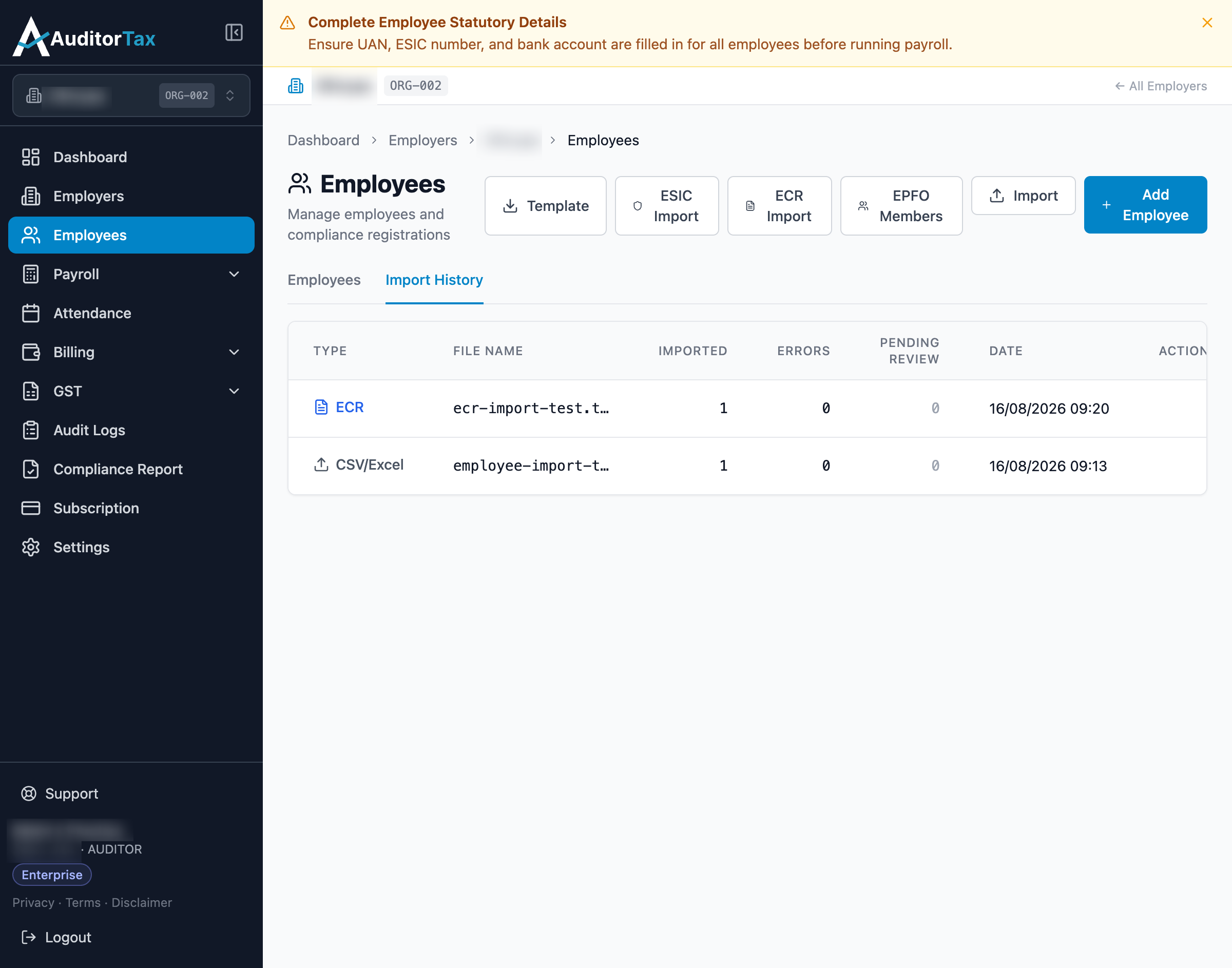
One thing that doesn’t add up: the ECR import’s employee ended up with status PENDING_REVIEW (see above), but this row’s own “Pending Review” column shows 0. That column appears to count something other than resulting employee status — what exactly wasn’t determined here.
The earlier failed attempts (the CSV import’s Date-of-Birth error, and the ESIC/EPFO blockers above) didn’t show up as separate rows here — whether failed-only import attempts get logged at all wasn’t confirmed.